

What is SafeArrival?
SafeArrival is an absence management system that improves student safety and makes it easy for you to let the school know about your child’s absence.
You are asked to report your child’s absence in advance whenever possible using one of these convenient methods
SM Home Mobile app
To download and use the free SchoolMessenger Home mobile app:
- Provide your email address to the school during registration.
- Get the app from the Apple App Store or the Google Play Store (or from theSchoolMessenger Canada website).
- Tap Sign Up to create your account.
- Select Attendance from the menu, and then select Report an Absence.
Website
To use the web or mobile web version:
- Provide your email address to the school during registration.
- Go to SchoolMessenger website. Users in Canada can access the SchoolMessenger Canada website.
- Click Sign Up to create your account.
- Select Attendance from the menu, then select Report an Absence.
Toll-free phone (833)-225-4644
Absences can be reported in advance:
- 24 hours/day
- Seven days a week
- For any school day in the school term
- Any time up till the cut-off time on the day of the absence
To report an absence, use the toll-free, interactive telephone system:
Whenever an absence is reported or updated, you will receive a confirmation notice by email, text message, or both if you have provided your contact information to the school.
Suppose you do not report your child’s absence in advance; the automated notification system will attempt to contact you using your preferred communication methods set up in the SchoolMessenger Home app. This may include push notifications to the app, email, SMS text messages, or phone calls. You will be asked to immediately provide the reason for your child’s absence. You can explain it using a phone line, website, or mobile app.
If an absence is not explained within approximately 25 minutes of the time the school starts the notification process, school staff will follow up to ensure your child is safe. Contact the school directly if you try to explain an absence using SafeArrival but are told it is past the cut-off time.
If you prefer not to receive notifications when your child is absent, remember to report your child's absence in advance.
If you receive notifications of your child's absence, provide the reason as quickly as possible using one of the listed methods or during the phone call notification itself.
Setting Up Your PIN
Manage PIN Settings (Android example)
Parents/guardians can require that a Personal Identification Number (PIN) be entered before absences can be reported or explained for their student using the SafeArrival phone system. PIN settings can be updated by parents from the Attendance page of the SchoolMessenger app OR by school or district staff that have edit access to the SchoolMessenger Communicate Contacts page.
Using the mobile apps, parents click the gear (Settings) icon in the upper right-hand corner of the Attendance page. They will be shown a brief description of PIN settings. Click Manage PIN Settings to continue.
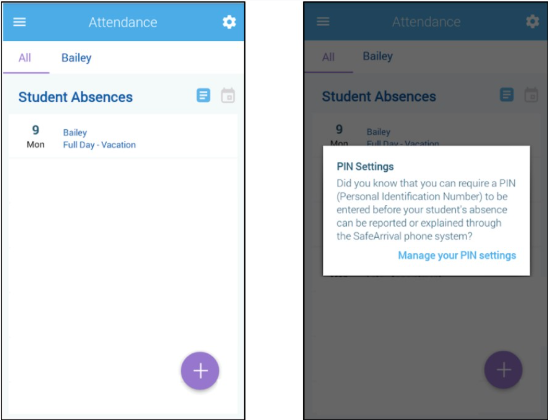
SchoolMessenger App - Manage PIN settings
On the Manage your PIN Settings screen, the parent can choose the district in which the student is enrolled (if the parent has students enrolled in more than 1 district). The parent will see a list of his/her students and will be able to tap the checkbox to request that a PIN be required for when reporting and explaining absences for this student by phone. A 4-digit PIN can then be entered. Changes made on this screen will be saved automatically. Tap the eye icon to see the PIN. Tap the edit icon to modify the PIN.
SchoolMessenger App – Website
Using the SchoolMessenger app website, parents click the Manage your PIN settings link at the bottom of the Attendance page.

SchoolMessenger Website - Manage PIN settings
On the SafeArrival PIN Settings screen, the parent can choose the district in which the student is enrolled (if the parent has students enrolled in more than 1 district). The parent will see a list of his/her students and will be able to tap the checkbox to request that a PIN be required for when reporting and explaining absences for this student by phone. A 4-digit PIN can then be entered. Tap the eye icon to see the PIN. Tap the PIN to modify it. Click Save to save any changes.
Why do I need a SchoolMessenger Home account?
You do not need a SchoolMessenger Home app account to use the toll-free phone line to report absences. However, it is recommended that you provide your email address to the school and set up your SchoolMessenger Home app account. This allows you to review and update absences, review your Contact information, and Communication preferences.
Refer to related SchoolMessenger Home app documentation for setting up your account, resetting your password, reviewing contact information, and specifying communication preferences. Once you have set up your account, choose Attendance from the menu.
If you cannot set up your account, you do not see the Attendance option, or you do not see your child listed in your account, contact the school directly to check that your correct email address is associated with your child.
How do I use the toll-free phone line?
When you call the toll-free phone line, follow the instructions for reporting an absence.
If the phone number you are calling from matches a phone number on file with the school for your student(s), you will hear your student’s name. If the system doesn’t recognize your caller ID, you will be asked to enter the student’s home phone number.
If you experience difficulties with the toll-free phone line, consider using the SchoolMessenger mobile app or website. Alternatively, you can reach out to the school directly.